[Home] - [Access to the platform] - [User Interface] - [Observations] - [Forecast Models] - [Static Layers] - [Events]
End users can access the web application from any internet-connected computer by following these steps:
- Step 1 - Access the myDewetra homepage: Go to https://mydewetra3-staging.mydewetra.world/ using your preferred web browser.
- Step 2 - Read and accept the Privacy Policy: Click the pop-up and then click "I Accept.".
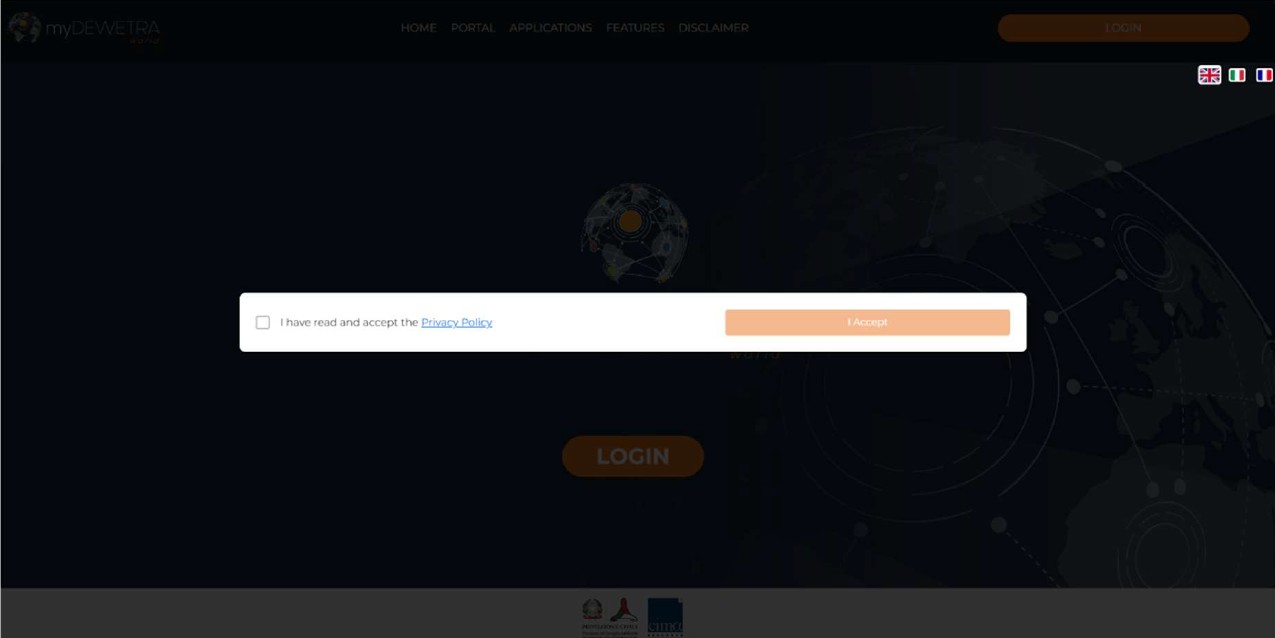
- Step 3 - Log in to the platform: Click the “Login” button

- Step 4 - Continue logging into the platform: Click the green button

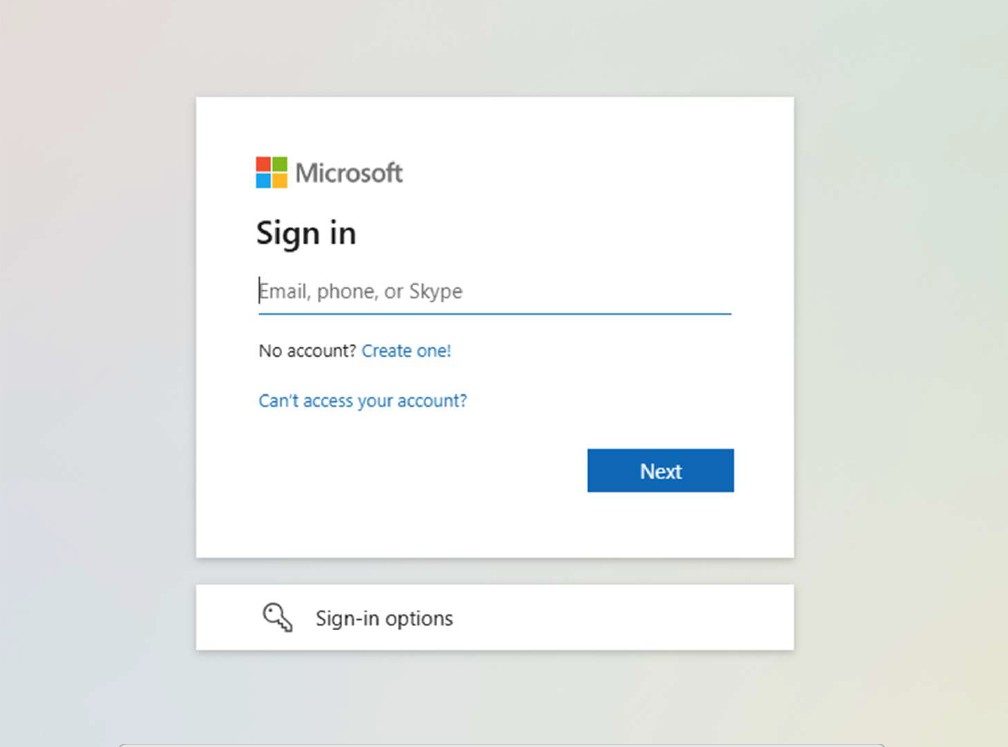
- Step 5 - Enter email in "Sing in" pop-up: Enter the email address associated with your Microsoft account to access the Mydewetra portal
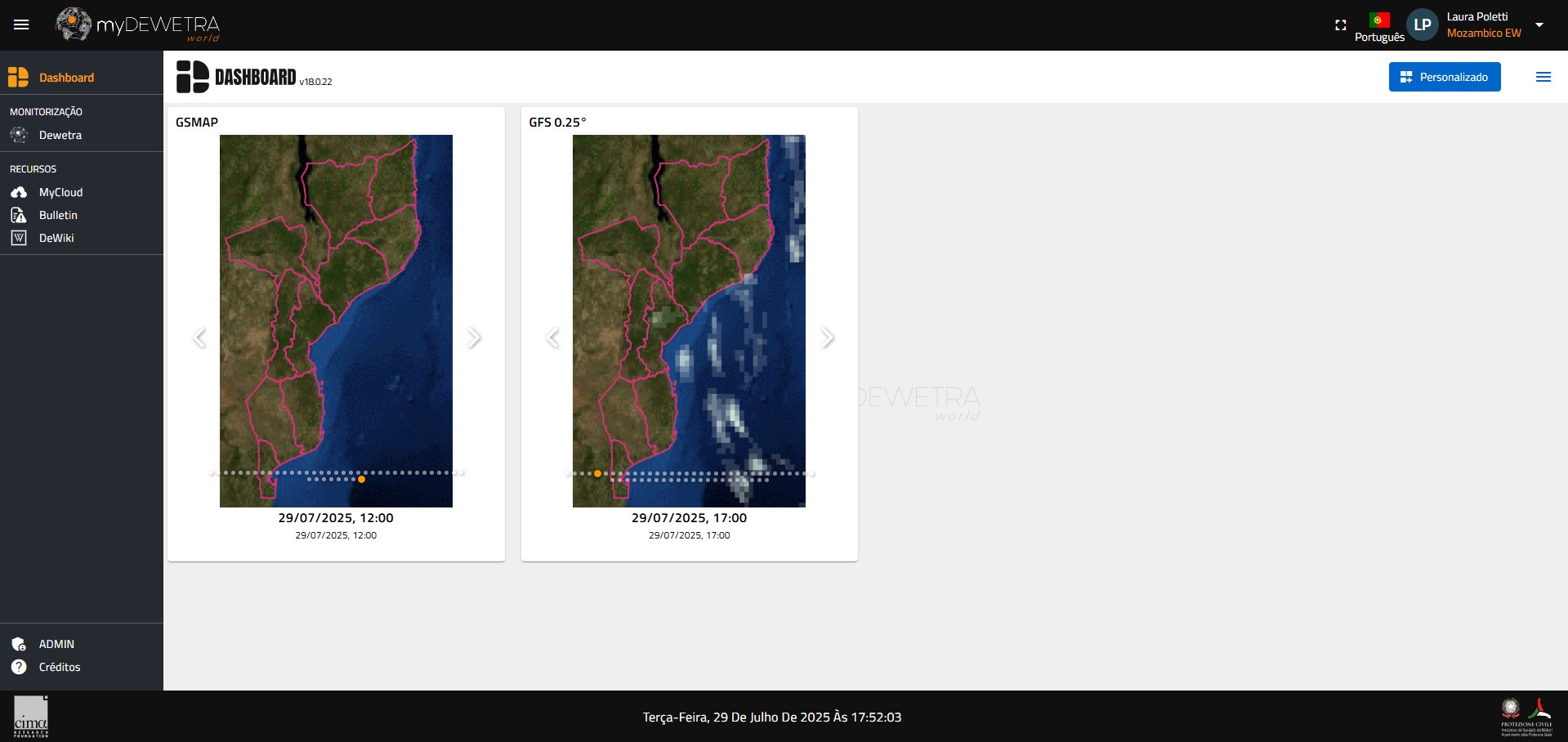
To enter Dewetra 3 users must click on the Dewetra name in the sidebar - top left corner of the screen (highlighted in yellow)
If you don't have a Microsoft account, follow these steps:
The first step is to open your web browser and go to https://signup.live.com.
After logging in, you'll need to decide whether you want to register a new Microsoft account (OPTION 1) or an existing email address (OPTION 2)
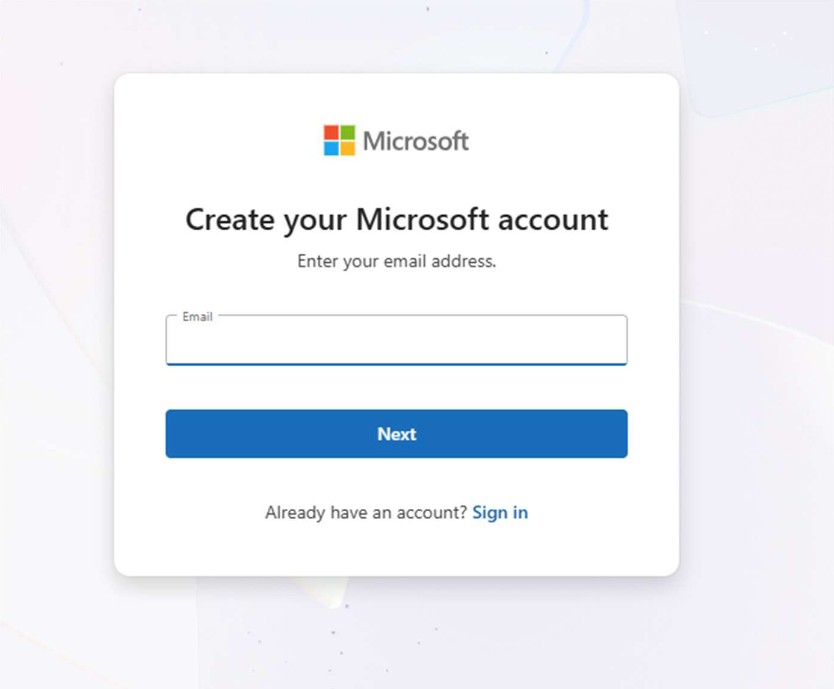
OPTION 1: Create a new Microsoft email
- Choose your new email address
- Enter the username you want to register with the email domain of your choice (for example, @outlook.com or @hotmail.com)
- In the following example, we entered the email address prova.cima@outlook.com
- If the email address is available, we'll see a screen like this
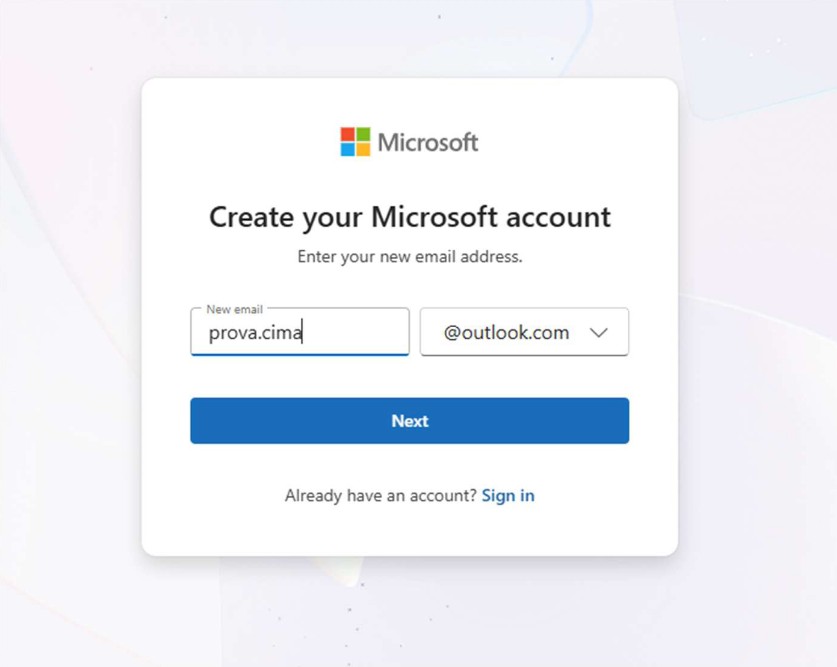
- Then click Next to proceed to Step 2
2. Set a strong password
- Create a strong password with at least 8 characters, including uppercase and lowercase letters, numbers, and special characters
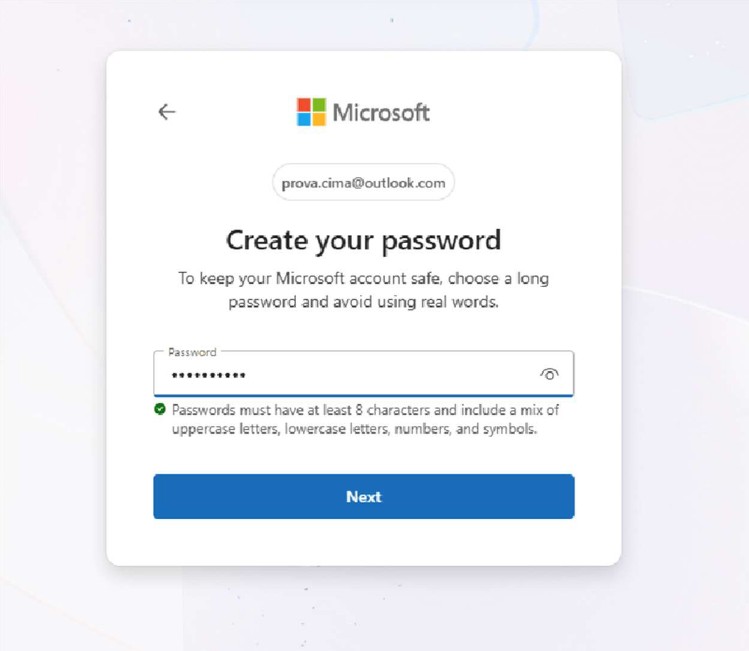
3. Enter personal information: provide the requested information:
- Country or region
- Date of birth
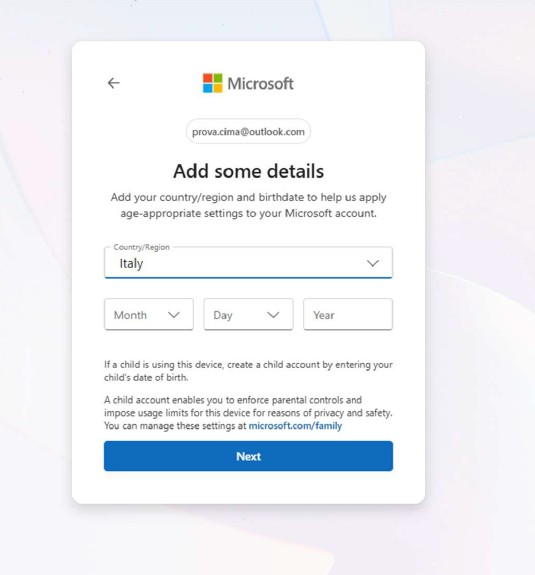
4. Enter personal information: Click Next and provide the requested information:
- Name
- Surname
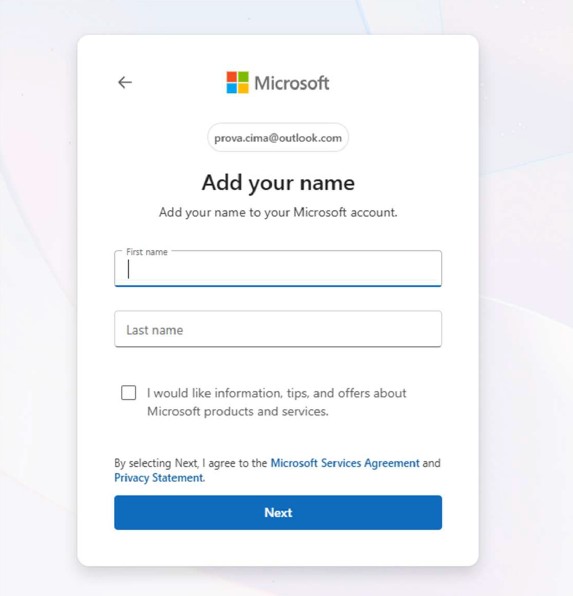
5. Verify your identity
- Complete the CAPTCHA verification to confirm you are not a robot
- Microsoft may also occasionally ask for an alternate phone number or email address for security purposes

6. Complete the registration
- Complete the CAPTCHA verification
- Your new Microsoft account is now ready, providing access to all Microsoft online services
OPTION 2: Register an existing email account (e.g. Gmail, Yahoo) with Microsoft
You may already have an email address from another provider, such as Gmail, Yahoo, or others. Microsoft allows you to use your existing email address to create a Microsoft account. Here's how to link your existing email address to Microsoft services:
- Navigate to the Microsoft sign-up page - Visit https://signup.live.com using your preferred web browser.
- Enter your existing email address - Enter your current email address (e.g., yourname@gmail.com) in the field provided. Click "Next" to proceed
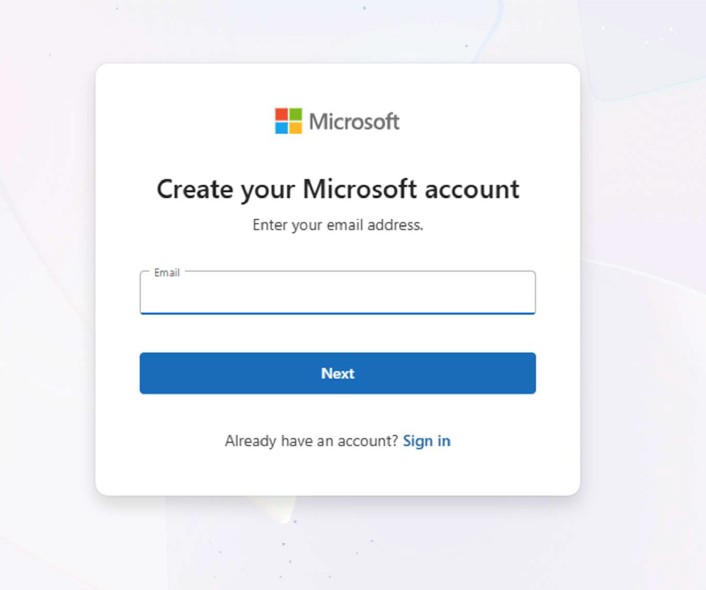
- 3. Verify your email address:
- Microsoft will send a verification code to your current email address
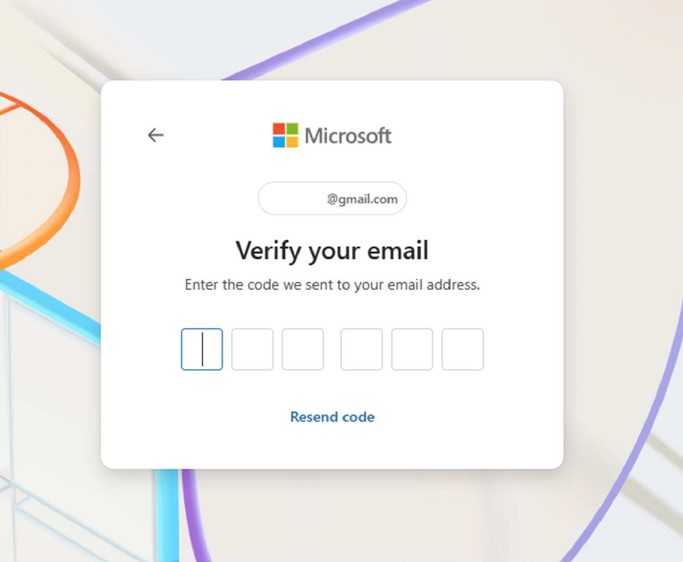
- Go to your inbox, retrieve the verification code, and enter it on the Microsoft registration page
4. Enter personal information - Provide the requested information:
- Country or region
- Date of birth
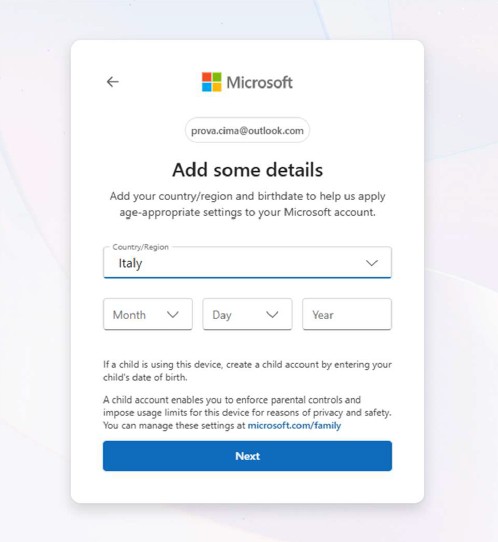
5. Enter personal information: Click Next and provide the requested information:
- Name
- Surname
6. Verify your identity
- Complete the CAPTCHA verification to confirm you are not a robot
- Microsoft may also occasionally ask for an alternate phone number or email address for security purposes
7. Complete Registration
- After verification, your current email address will serve as your Microsoft account login.
- You now have access to Microsoft services like Outlook Web, Teams, OneDrive, and Office Online using your original email address.
[Home] - [Access to the platform] - [User Interface] - [Observations] - [Forecast Models] - [Static Layers] - [Events] - [Tools]