[Home] - [Access to the platform] - [User Interface] - [Observations] - [Forecast Models] - [Static Layers] - [Events]
The first action button on the toolbar is the Observations menu, which provides the user with access to all observational datasets. Once the user clicks on the menu, a window appears. At the top, filters are available to refine the search for the desired layer: the coverage filter, hazard picker, and layer search.

The coverage filter allows the user to select layers with a specific geographical extent. The following image shows an example of a list of extents available in the system; the lists may vary depending on the user. By default, all coverages are selected.

The hazard picker allows the user to select only the layer related to one or more hazards. The lists of hazards may vary depending on the users. By default, all hazards are selected.

Finally, the search layer allows the user to find a layer by typing its name or part of it. This filter works only on the selected tags.
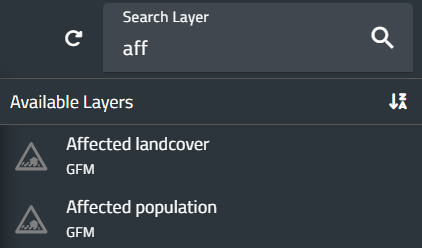

In the bottom part of the window, the list of layers appears: on the left, the list of tags that can be selected, and on the right, the layers associated with each tag. The following table lists the available layers, but the list of layers may vary depending on the users. More information about each layer can be accessed by clicking on its name.
When a layer is loaded, it is automatically added to the Control Map and the Layer List (top left of the screen). While the layer is visible in the Control Map, the Layer List is displayed as shown in the following image, providing additional information and access to specific functions:

- First of all, some information is provided, such as the layer name, the reference date, the initialization time of the run (if the selected layer is a model output), and the temporal aggregation, if available for the displayed variable. In the given example, the system shows the available information for the GSMaP dataset.
- To the left of the layer name in the Layer List, an icon with six dots allows users to drag the layer up or down within the list. The order of the layers in the list determines their display order on the map, with the top layer in the list also appearing on top of the map, and so the following in order.
- To the right of the layer name in the Layer List, a set of buttons is available to the user:
- Hide layer enables the user to temporarily hide a previously loaded layer without deleting it from the list; pressing the same button restores its visibility.
- Remove layer, the trash-can icon, by means of this button, the previously loaded layer can be removed from the list
- Layer details, the i icon, opens a window displaying some information and metadata about the layer
- Zoom to Layer allows the user to set the zoom back to the default extent for that layer
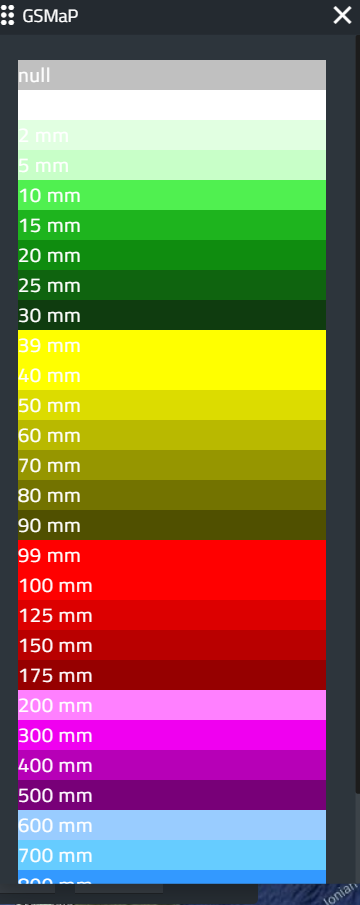
- Legend displays the pop-up window showing the legend for the selected layer. The following image shows an example of the legend for the GSMaP layer.
- Properties button opens a window that allows users to modify parameters such as variables, cumulative range, spatial aggregation, and the reference date of the run, depending on the characteristics of the selected layer. Users can modify all parameters in order to display the layer of interest on the map. The following image shows the properties of the GSMaP layer:

- Expand option displays additional buttons that provide access to functions such as:
- the slider to adjust the transparency/opacity of each layer
- the metadata button allows the user to view the information and metadata file associated with the layer
- the download button saves the selected layer to the user’s local disk in various formats.
For certain layers below the layer name, users can find the Play/Pause, Rewind, and Fast Forward buttons. These controls allow navigation through the time series (forward to the next entry or backward to the previous one), if available.
By left-clicking the layer name, users open the same Properties window, where they can edit the parameters of the loaded dynamic layer. These parameters may include, for example: spatial aggregation, accumulation period (if the variable is cumulative), time step, threshold values for data filtering, and the interpolation algorithm (if the variable is interpolated), etc.
[Home] - [Access to the platform] - [User Interface] - [Observations] - [Forecast Models] - [Static Layers] - [Events]