[Home] - [Platform Access] - [Admin] - [DDS Config Manager] - [Bulletin: Bulletin Management and Custom Bulletin Editor] - [User Interface and Available Tools] - [Static Layers] -[Observations] - [Forecast Models] - [Events]
End users can access the web application from any internet-connected computer.
¶ Access to the homepage
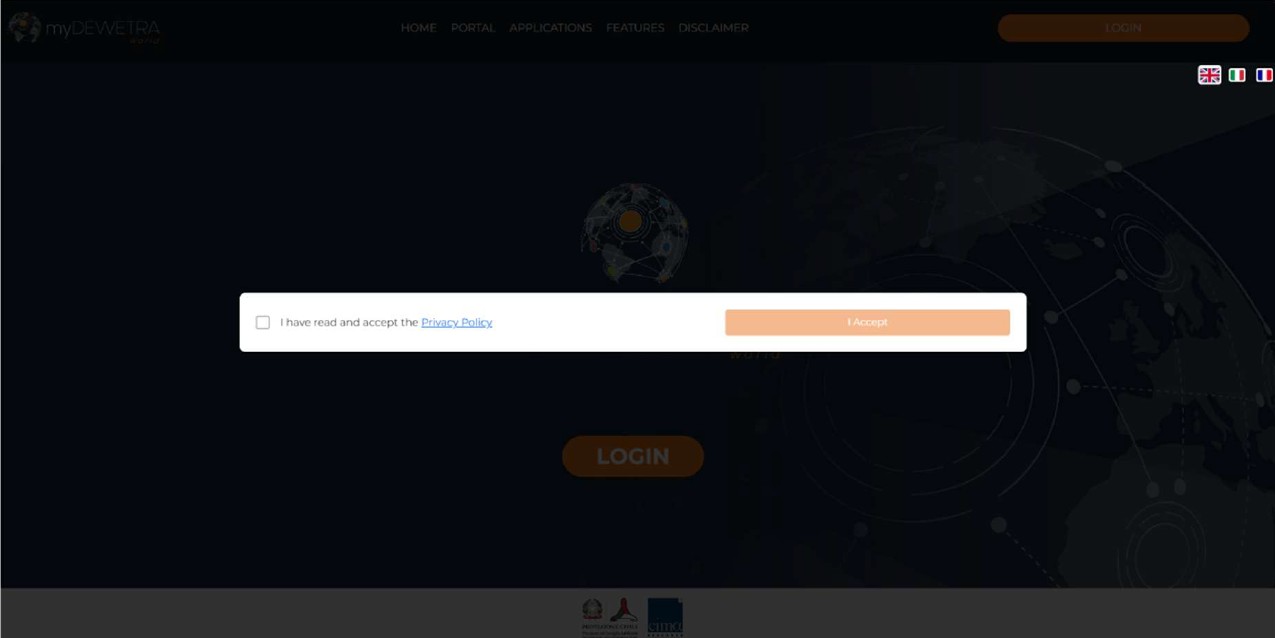
To access the myDewetra homepage, go to https://mydewetra3-staging.mydewetra.world/ using your preferred web browser.
A pop-up window appears with the Privacy Policy, that users have to read and accept by clicking “I Accept" to proceed.
¶ Access options
The homepage displays two options to access the platform:
Register button → It opens the Request Access form, designed for users who need to request access to the platform for the first time.
Login button → It opens the authentication window, where users can access the platform using a Microsoft or Google account.

- If you do not have a Microsoft or Google account, you can either create a new one or register an existing email address from another provider (e.g. Yahoo, Gmail, etc.) on Microsoft or Google.
The following sections provide guidance on how to proceed:
1. Microsoft access procedure
2. Google access procedure
¶ myDewetra Registration
Once you have your Microsoft or Google account, you can submit a request to access the MyDewetra platform.
To access the registration form, navigate to the myDewetra homepage at https://mydewetra3-staging.mydewetra.world/ using your preferred browser.
Click the Register button.

A window will appear with the Request Access form. Fill in all required fields: your first name, last name, email address (associated or linked to a Google or Microsoft account, as described above), Institution, and additional information (optional).
Providing additional information can help speed up the approval process. For example, specifying the geographical extent you need to visualize or the project you are working on helps the administrator customize your configuration.

Once the request is submitted, the platform administration will review it.
After approval, you will receive a confirmation that your account has been created.
¶ myDewetra Access
Once your account has been approved, follow the steps below to access the platform.
Step 1: Open the myDewetra homepage
Go to https://mydewetra3-staging.mydewetra.world/ using your preferred browser.
Step 2: Read and accept the Privacy Policy

Step 3: Login into platform
Click “Login” in the homepage and choose your identity provider (Microsoft or Google). You will be redirected to the provider's authentication page.

3.1 First access with Microsoft
If you select “Sign in with Microsoft”, enter the email address associated with your Microsoft account to access the myDewetra platform. Click “Next” to proceed.

There are two different options to access the platform using the Microsoft authentication.
Let's look at both options.
First access with an original Microsoft Account
If you are accessing for the first time using an original Microsoft account (e.g., @outlook.com or @hotmail.com), the system asks you to type your password or to verify your email by using a verification code sent to your email address.


Alternative sign-in methods are available under “Other ways to sign in”.

If you choose to sign in with your password, enter it and click "Next" to proceed.
If you prefer to verify your identity via email, click “Send Code”, retrieve the code from your inbox and enter it in the verification field (6-digit code). Click “Next”.

Microsoft may offer the option to create a passkey to sign-in to your Microsoft account.
This is optional, so you can simply click “Skip for now” to continue with the classic authentication procedure.

Microsoft may ask if you want to stay signed in into the platform.
If you select “Yes”, future access will be faster and will not require repeating the previous steps.

Microsoft may also ask you to accept the use of your account information according to its Terms of Service and Privacy Statement.
Click “Accept” to continue.
In some cases, Microsoft may show this request before asking you if you want to stay signed in.

Once the Microsoft authentication process is completed, you can go back to the myDewetra homepage.
If your user profile has already been created by the administrator/coordinator (after your Request Access form), you will be able to access and navigate the platform immediately.

If your user profile has not yet been created, the system will display a message like the one above, indicating that you don't have the permission to access it yet and to contact the administrator.

First access with a Microsoft account created with a different provider
If you are accessing myDewetra for the first time using an email address from another provider (such as Gmail or Yahoo) that you have previously registered in the Microsoft system, enter the email address in the “Sign in” window and then “Send code”. Microsoft will send a 6-digit verification code to the email you entered.

Retrieve the code from your email and enter it in the verification field to proceed.

The rest of the procedure is the same as described under “First access with an original Microsoft Account”.
3.2 First access with Google
If you select “Sign in with Google”, you will be redirected to the Google authentication page. Enter the email address associated with your Google account to access the myDewetra platform.

Google will process the authentication and, once completed, you will be redirected back to the MyDewetra homepage.

If your myDewetra user profile has already been created by the administrator/coordinator, you will be able to access the platform immediately.
If your profile has not yet been created, the system will display a notification indicating that your user is not enabled yet.

[Home] - [Access to the platform] - [User Interface] - [Observations] - [Forecast Models] - [Static Layers] - [Events] - [Tools]